A drawing tablet is a strange purchase. You can read the specs for an hour and still not know whether it will suit your hand. What actually matters is smaller and more human: does the stylus keep up when you draw a slow curve, is the app you rely on available, and will you still be carrying it in six months? The iPad and Android worlds have settled into genuinely different answers to those questions. One gives you a tight, polished ecosystem with a handful of exceptional apps. The other gives you flexibility, a stylus in the box and often a smaller total bill. Here is how they compare for illustration, note-taking and life in a rucksack.
Start with the stylus, not the screen
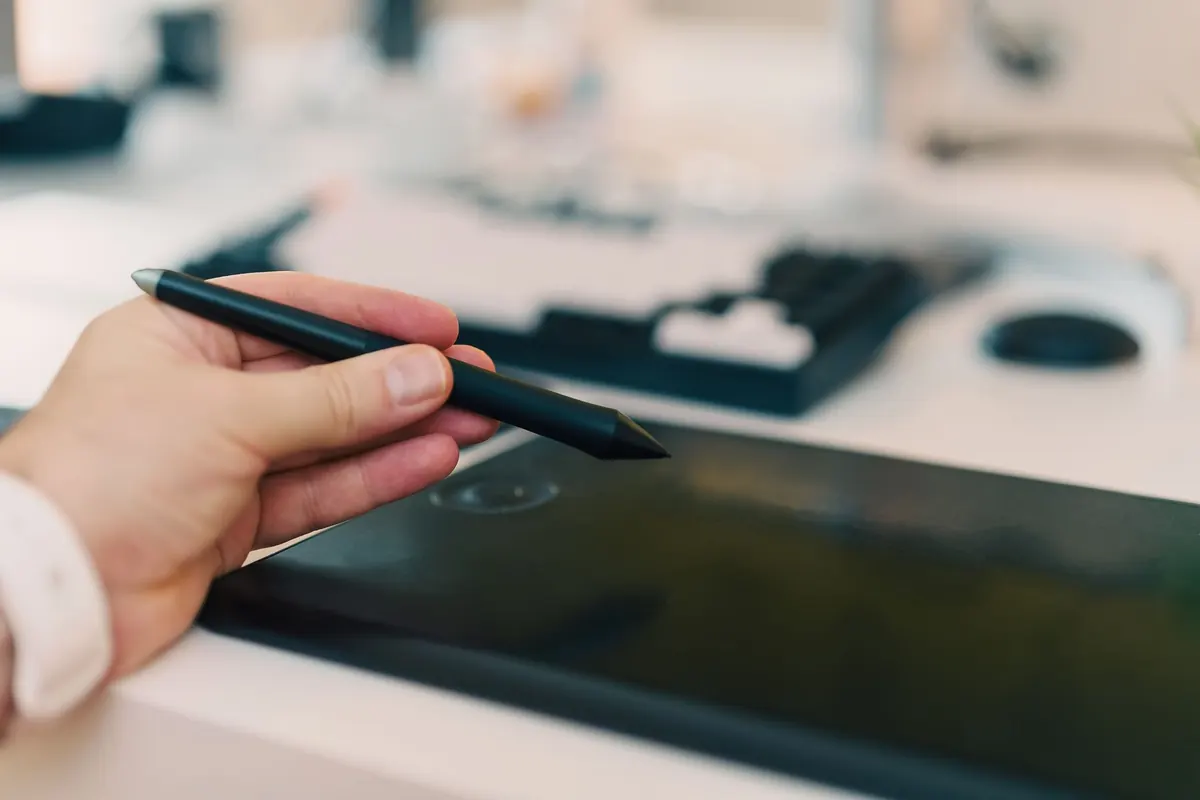
The single biggest difference between a tablet you love and one that gathers dust is the pen. Everything else is secondary.
Apple's Pencil line is excellent, but it is also fragmented. Different Pencil models pair with different iPads, and the compatibility list is fiddly enough that you should check it before bidding on a second-hand tablet. Some models charge wirelessly on the side of the iPad; others plug in; the newest ones support hover, which is genuinely useful for precise work in apps that use it.
Samsung's approach is friendlier for artists on a budget. The S Pen ships with the Galaxy Tab S models and uses Wacom's EMR technology, so it never needs charging for basic writing and drawing — a small thing that becomes a large thing when you sit down to work and the battery is flat. Other Android tablets are a lottery. Some ship with decent pressure sensitivity and proper palm rejection; plenty have an optional "stylus" that is really a plastic finger with a rubber tip. If the pen is an afterthought in the marketing, treat it as an afterthought in reality.
Apps matter more than chipsets
You are buying an operating system to run software, and the software is where the two platforms diverge most sharply.
Where iPad is hard to beat
Procreate alone sells a lot of iPads, and it is iPadOS-only — there is no Android version and no sign of one. Many illustrators build an entire working method around it. Adobe's and Serif's ecosystems also tend to land on iPad first, and the Apple Pencil's low latency is most noticeable in apps written specifically for it. For a professional or semi-professional illustrator, this exclusivity is often the whole decision.
Where Android pulls ahead
Krita is free, desktop-grade and runs on Android tablets — a serious painting tool with a brush engine that will feel familiar if you have ever worked on a laptop. Clip Studio Paint, Infinite Painter, Sketchbook and MediBang Paint are all available across both platforms, though subscription and one-off pricing can differ, so check the current terms in the relevant store before you commit. File handling is looser on Android too, which suits anyone juggling layered PSDs and reference folders.
Note-taking, weight and the shape of the screen
For lectures, client meetings and margin scribbles, both platforms do the job. Samsung Notes is free and quietly very good on Galaxy Tabs, while iPad users tend to settle on GoodNotes or Notability. Handwriting recognition is decent on both; if you write in a mix of English and another language, test it first.
Screen shape matters more than people expect. iPads use a 4:3-ish ratio, which feels like paper in either orientation — good for portrait note pages and sketching. Many Android tablets are wider, closer to 16:10, which is lovely for canvas work in landscape and video, but in portrait you get a narrower, taller page that suits long documents better than A4-style notebooks.
Then there is weight. An 11-inch tablet with a keyboard case is a laptop, whether you admit it or not. If you draw on the train or in cafés, the smaller models — the iPad mini, the more compact Android tablets — are the ones that actually leave the house. Buy the biggest screen you will genuinely carry, not the biggest you can afford.
Screens, storage and files
Modern iPads cover the P3 colour space and are generally well calibrated out of the box; the Pro models add reference modes that help if you are preparing work for print. Android tablets often use OLED panels that look punchier, which is lovely for films and slightly misleading for colour-critical work — switch the display to its natural or sRGB mode and check how it looks before trusting it. In both cases, turn off any automatic brightness and night-shift style features while you work.
Storage is the trap. No iPad has a memory card slot, so choose capacity up front and plan on cloud storage or a USB-C drive. Several Android tablets still take microSD cards, which is a real advantage if you work with large comic pages or scanned references. Whichever you pick, budget for a matte screen protector if you like the friction of paper — and know that textured film wears nibs down faster, so buy spares.
The UK cost picture
Sticker prices in the UK include VAT and shift with exchange rates and promotions, so treat any figure you read as temporary. What stays constant is the shape of the bill. Add these to the headline price before comparing:
- The stylus, if it is not included — a significant extra on most iPads, and usually bundled with Galaxy Tab S models
- A case with a stand and somewhere to park the pen, or you will lose it within a month
- Extended warranty or insurance, especially for a device that travels
- App purchases or subscriptions, which can quietly cost more than the accessory
- A screen protector, spare nibs and a decent USB-C hub if you work with drives
Ways to soften the cost: Apple's UK refurbished store sells current-generation hardware with a full warranty, manufacturer-certified refurbished Android tablets are widely available, and student discounts through the Apple Education Store or UNiDAYS are worth checking if you are eligible. Samsung discounts its tablets directly and often through trade-in. Buying last year's model new is usually the best value of all — the drawing experience barely changes between generations, while the price does.
Five questions that settle it
- Does your work depend on a specific app? If it is Procreate, buy an iPad and stop reading.
- Do you want the pen included? A Galaxy Tab S usually wins on total price.
- Will you mostly write notes and sketch occasionally? Prioritise screen quality and pen feel over processor speed.
- Do you need a memory card or an open file system? That points to Android.
- How big is too big? Choose the size you will carry daily, then spend what is left on the pen.
Before you order
Get hands on the device if you can — an Apple Store, a John Lewis or a Currys with display units will let you scribble for a few minutes. Draw a slow diagonal line and watch for wobble. Press lightly in a corner to see how the pen tracks. Check palm rejection by resting your hand flat while you draw, and test the pen's shortcut button in the app you actually use, not a demo.
If you are ordering online, read the returns policy before you buy rather than after. Distance-selling rules give UK shoppers a cancellation window on most goods, but the details vary by retailer and by product, so confirm it yourself. Then start modest: a mid-range tablet and good accessories will teach you more in three months than a month of spec comparison. You can always upgrade once you know how you draw.
Photo: Jakub Zerdzicki / Pexels